Read agent replies
When the agent emails or texts back, Acre AI reads it and gets the log ready on the lead: their counter and when it runs out, your offer accepted or rejected, or a home that went to someone else. It drafts your answer from your playbook too. You tap to log it, and you send the answer yourself.
Turn it on
It reads the emails and texts that land on your leads, so connect Gmail or Twilio first. See Call, text and email from Acre.
- 1
Open Acre AI
Go to Manage › Integrations and pick Acre AI under AI.
IntegrationsAcre AI - 2
Turn it on
Tap Turn on Read agent replies. Only the owner can. New replies show on their leads within a few minutes.
Turn on Read agent replies - 3
Write your playbook
Under Your playbook, write what Acre AI may tell agents about how you buy: how you pay, proof of funds, how fast you close, earnest money, inspection. Tap Save playbook.
Your playbookSave playbook
Log what they said
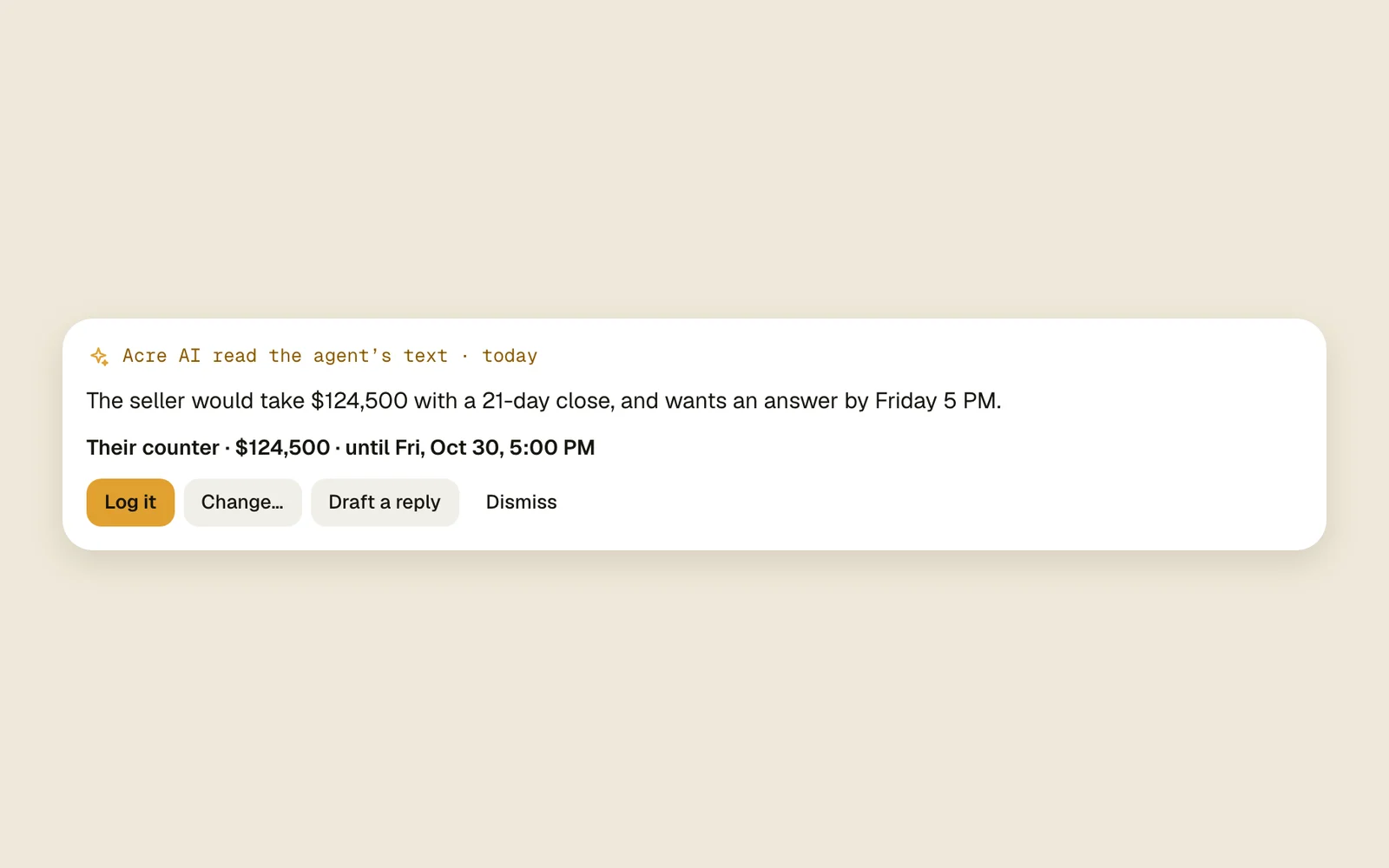
When Acre AI finds something to log, a card shows above the lead's activity: Acre AI read the agent's email (or text), what they said, and what it would log, like “Their counter · $124,500 · until Fri, Oct 30, 5:00 PM”.
- 1
Log it as it is
Tap Log it. It's logged like you'd logged it yourself, with what they said as the note, and workflows pick it up. For a home that went to someone else the button is Archive it.
Log itArchive it - 2
Or change it first
Tap Change… to open Log activity filled in. Fix the amount or the expiry and tap Log.
Change…Log - 3
Or dismiss it
Tap Dismiss when it got it wrong or you don't want it logged.
Dismiss
Answer the agent
When the agent asks something or is waiting on you, the card says Waiting on your answer, even when there's nothing to log.
- 1
Draft it
Tap Draft a reply. Acre AI writes the answer from your playbook and opens Reply to the agent, by text for a text and by email for an email.
Draft a replyReply to the agent - 2
Check it and send it
Read it, change what you like, and tap Send text or Send email. Nothing goes out until you do.
Send textSend email
Good to know
- Nothing is logged or sent until someone taps. Undo takes a logged one back, and the card shows again.
- It reads replies from the last 3 days, a few a minute, on leads that aren't archived or sold. A reply with nothing to log and nothing to answer, like a thank-you, shows no card.
- A text or an email to the agent after their reply, from the card or not, answers it: the card for a question goes away.
- Log an offer, a counter, Accepted or Rejected yourself and the card for an older reply goes away.
- Before Acre AI sees a reply, names, email addresses, phone numbers and the lead's address are taken out. Prices stay. Your playbook goes to Acre AI with each draft, so keep anything private out of it.
- Each reply it reads is an Acre AI request, out of your plan's daily number. When they're used up, it pauses until the next day. See Acre AI.