Build your own workflow
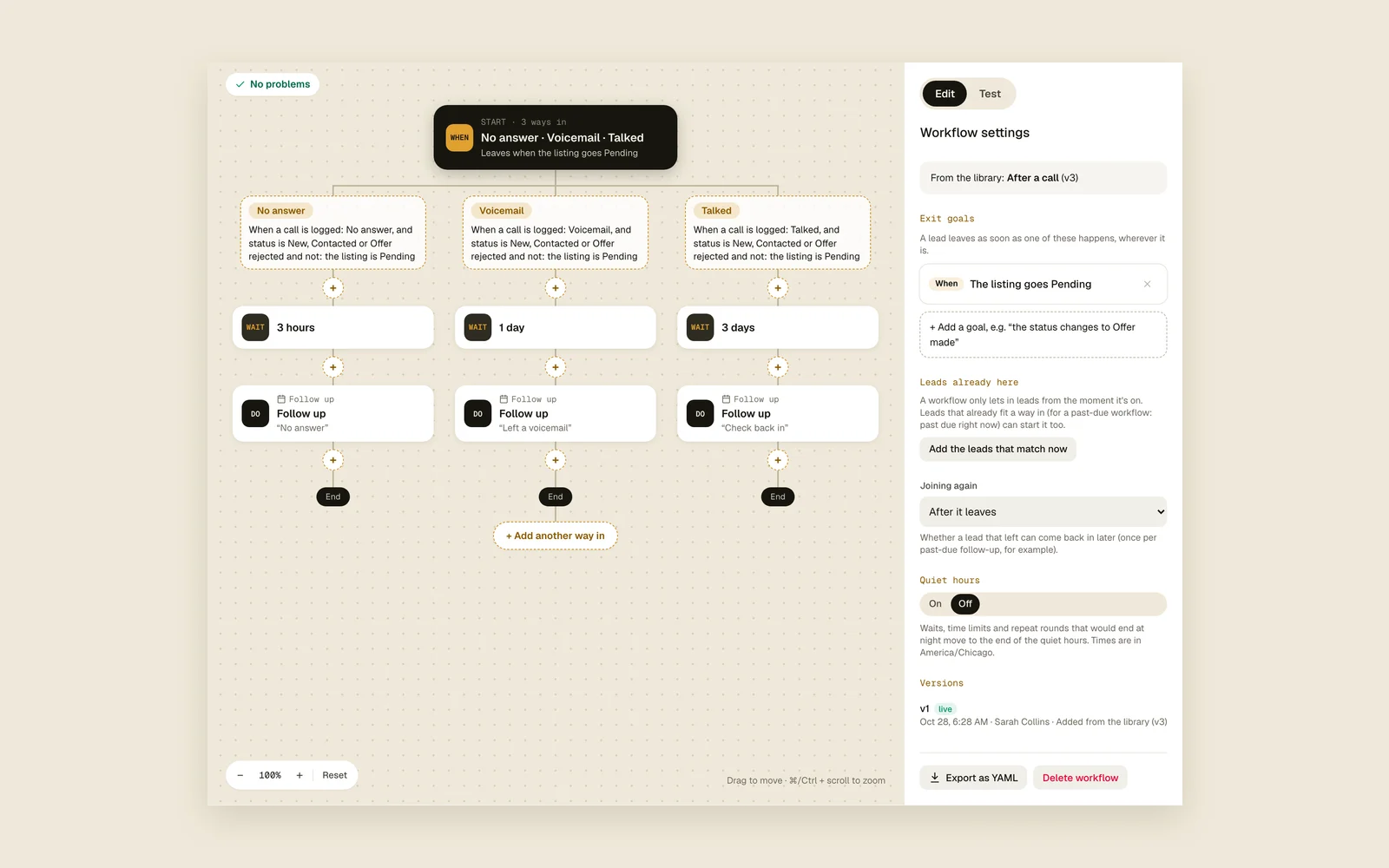
Draw your own follow-up cadence on a canvas. It's built from If blocks: one at the top decides who joins, and more in the middle wait for something to happen or check facts. Test it on a lead, then publish.
On this page
What it is
A workflow is a list of steps a lead walks down. An If can do two things. With something that happens in it (an event, like a call being logged), it waits until that happens. With only checks (facts, like the asking price), it checks now and moves on.
Every edit saves to a draft as you go. Nothing reaches your leads until you press Publish.
Start: who joins
- 1
Make a new workflow
Go to Manage › Workflows, press New workflow and pick Starts on its own. An empty canvas opens.
New workflowStarts on its own - 2
Add the first If
Press Add the first If and pick what makes a lead join. Search, or browse the groups. Press Add.
A lead is addedA call is loggedThe listing price dropsA follow-up is past dueAn offer is made - 3
Narrow it with checks
In the side panel, under And only if, press + Add a check. With two or more, choose whether All or Any must be true. Each check can be Is true or Is not true.
Asking priceStatus isSource isCame from a buy boxA field's value is - 4
Or use checks alone
Pick only a check, with nothing that happens, and leads join as soon as it's true for them.
Add steps
- 1
Press + where the step goes
Add a step opens. Search for it, or pick a group: Decide (an If), Do (actions) or Flow (waits and loops). Press Enter to add the one that's highlighted.
If…WaitRepeatGo backSplit A/BEnd - 2
Pick what to do
Under Do, pick an action. Click any step on the canvas to change it in the side panel.
Follow upClear the follow-upSend notificationChange statusSet a fieldAssign ownerAdd a noteArchive the leadStart another workflowSend SMS to realtorSend email to realtor - 3
Put a Wait before a follow-up
Follow up puts the lead on the dashboard right away. To follow up later, add a Wait above it: for some minutes, hours or days, until a day at a time (like tomorrow at 9:00 AM), or around the offer deadline or the follow-up.
For a timeAround a lead date - 4
Say who hears about it
Send notification pushes to the lead's owner, the workspace owners or someone you pick. The title and message can fill in the address, the agent's name, the asking price and your lead fields.
The lead's ownerWorkspace ownersSomeone
Ifs, loops and splits in the middle
- 1
Add an If that waits
Press +, pick If…, and pick something that happens, like A call is logged. The lead stops here until it does. The canvas marks it IF · WAITS.
- 2
Give it paths
Each path has its own events and checks, and its own steps. Press + Add a path for another, like one for No answer and one for Talked. Paths are tried top to bottom, and they join back together underneath.
+ Add a path - 3
Set a time limit with Otherwise
Under Otherwise, pick Give up after and a time. If nothing happens by then, the lead runs the Otherwise steps and carries on below. Wait forever keeps it there until something happens.
Give up afterWait forever - 4
Or an If that checks now
An If with only checks decides right away: the lead takes the first path whose checks are true, or Otherwise. The canvas marks it IF · CHECKS NOW.
- 5
Try again with Go back
Inside a path, add Go back and pick the step to return to. Choose At most a number of times, then the lead continues below, or Every time.
At mostEvery time - 6
Repeat on a timer
Repeat runs the steps inside it up to the number of rounds you set. Put a Wait inside, and under Stop early when add what ends it, like a call where you talked.
+ Add something that stops it - 7
Compare two ways with Split A/B
Split A/B sends each lead down one branch, picked at random by the share you give it. Add up to four branches. The stats show how each one does.
+ Add a branch - 8
Stop with End
End takes the lead out of the workflow there. Follow-ups it already set stay.
Workflow settings
Close the step you have open and the side panel shows Workflow settings. More › Settings and versions opens it too.
- 1
Exit goals
Press + Add a goal. A lead leaves as soon as it happens, wherever it is in the workflow, like the status changing to Offer made.
+ Add a goal - 2
Joining again
Pick whether a lead that left can come back in later.
Never: a lead joins onceAfter it leaves - 3
Quiet hours
Turn them On and set the hours (they start at 20:00 to 08:00). Waits, time limits and repeat rounds that would end at night move to the end of the quiet hours. A single Wait can be set to Ignore them.
OnOff - 4
Leads already here
A workflow only lets in leads from the moment it's on. Once it's published and on, Add the leads that match now brings in the ones that fit already.
Add the leads that match now
Test and publish
- 1
Press Test
Test runs the draft. Use the Sample lead, or find a real lead by address, and change its status, asking price or source. Nothing is saved or sent.
TestSample lead - 2
Make things happen
Under Something happens, fire an event, like a call or a price drop. Under Time passes, move the clock on. What happened lists every step, and the canvas shows where the test lead is.
+30 min+1 hour+1 day - 3
Fix what's flagged
Problems show in Workflow settings under Fix before publishing. Click one to jump to its step.
- 4
Publish
Press Publish. You see what changed. If leads are on a step you removed, choose to move them to another step or take them out. Tick Turn it on, and Also add the leads that match a way in now if you want them. Add a note if you like, then press Publish version.
PublishTurn it onMove them to another stepTake them out of the workflow
Good to know
- Only the workspace owner can change workflows. Everyone else can look around and test.
- Only workflows set follow-ups. A call or text finishes the current follow-up unless a workflow sets the next one.
- Follow up means now. A Wait above it sets when.
- You can only go back to a step that waits (an If that waits, a Wait or a Repeat), so a loop never runs over and over at once. Each lead keeps its own count.
- Time-based events, like a follow-up being late or an offer deadline getting close, are checked every minute. Ways in with only checks are checked whenever a lead changes, and hourly.
- Times are in the timezone of whoever saved the workflow. It's working hours means Monday to Friday, 9 AM to 6 PM.
- Publishing a new version: new leads start on it right away, and leads already in keep their place.
- Turning a workflow off pauses its leads where they are. Deleting it takes them out and removes its history.
- Archiving a lead takes it out of every workflow.
- Start another workflow hands the lead to that workflow's first steps without checking its way in, unless it's in that workflow already.
- An If can have up to 6 paths, and each path up to 8 events and 8 checks.
- Every workflow counts toward your plan's limit, drafts and switched-off ones too. See Plans.