Members and invites
Bring your team into a workspace. Everyone in it works the same leads, workflows and fields, and each lead has one owner.
On this page
What it is
Manage › Members & invites lists everyone in the workspace, each tagged Owner or Member. Everyone sees the workspace’s leads; only the owner can invite or remove people.
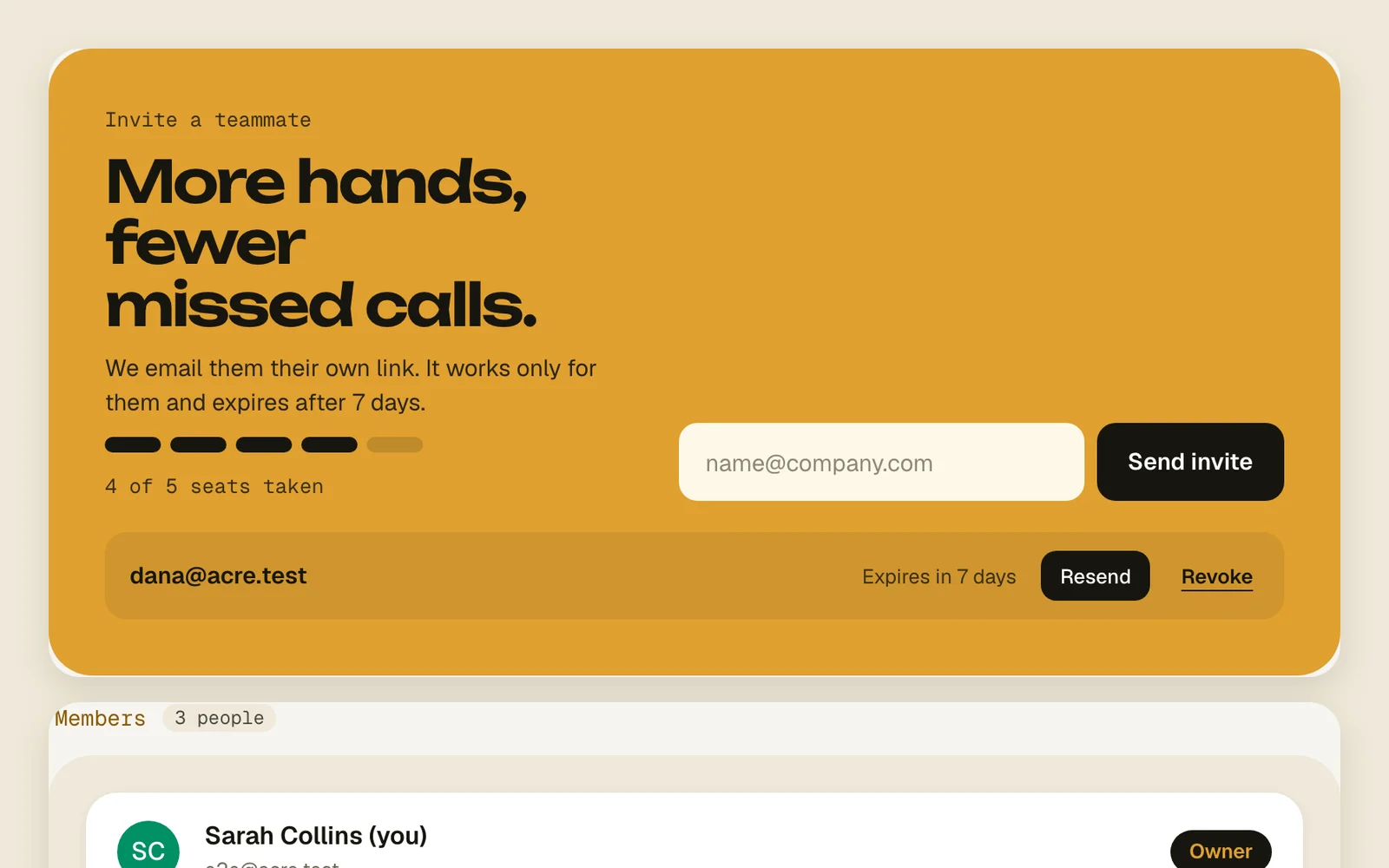
An invite goes by email. It works only for the address it was sent to, and expires after 7 days.
Invite your team
- 1
Invite a teammate
Under Invite a teammate, type their email and tap Send invite.
Send invite - 2
They join
They open the link in the email. If they’re new to Acre, they enter a name and password and tap Set password and join. If they already have an account, they sign in with that email and tap Accept invite.
Set password and joinAccept invite - 3
Keep an eye on waiting invites
Invites nobody has used yet are listed under the form, with the days left. Resend sends the email again; Revoke takes the invite back.
ResendRevoke - 4
Give a lead an owner
On a lead’s page, under Owner, tap a teammate. The lead shows under Mine on their Today, and they get a push when its follow-up comes due.
OwnerMine - 5
Remove someone
Tap Remove next to them and confirm. They lose access right away, and you can invite them back later.
Remove
Good to know
- Waiting invites take a seat, just like members. Your plan sets how many seats there are: see Plans and limits.
- On Plot, a workspace is for one person. To bring your team, email hello@acre.so.
- The link only works for the email it was sent to. Signed in with another address, it won’t let you in.
- When someone leaves or is removed, their leads and buy boxes go to the workspace’s owner.
- Anyone in the workspace can change a lead’s owner, and workflows can assign leads too.
- Members can leave a workspace from Manage › Leave workspace.
- Invites in the sidebar is something else: it’s for inviting people to try Acre, not into this workspace.