Mentions and team activity
Pull a teammate into a lead with an @mention, and see at a glance what everyone has been doing.
On this page
What it is
Type @ in a lead’s note and pick a teammate. They find it in their Notifications, get a buzz on their phone if push is on, and see a pop-up if they have Acre open.
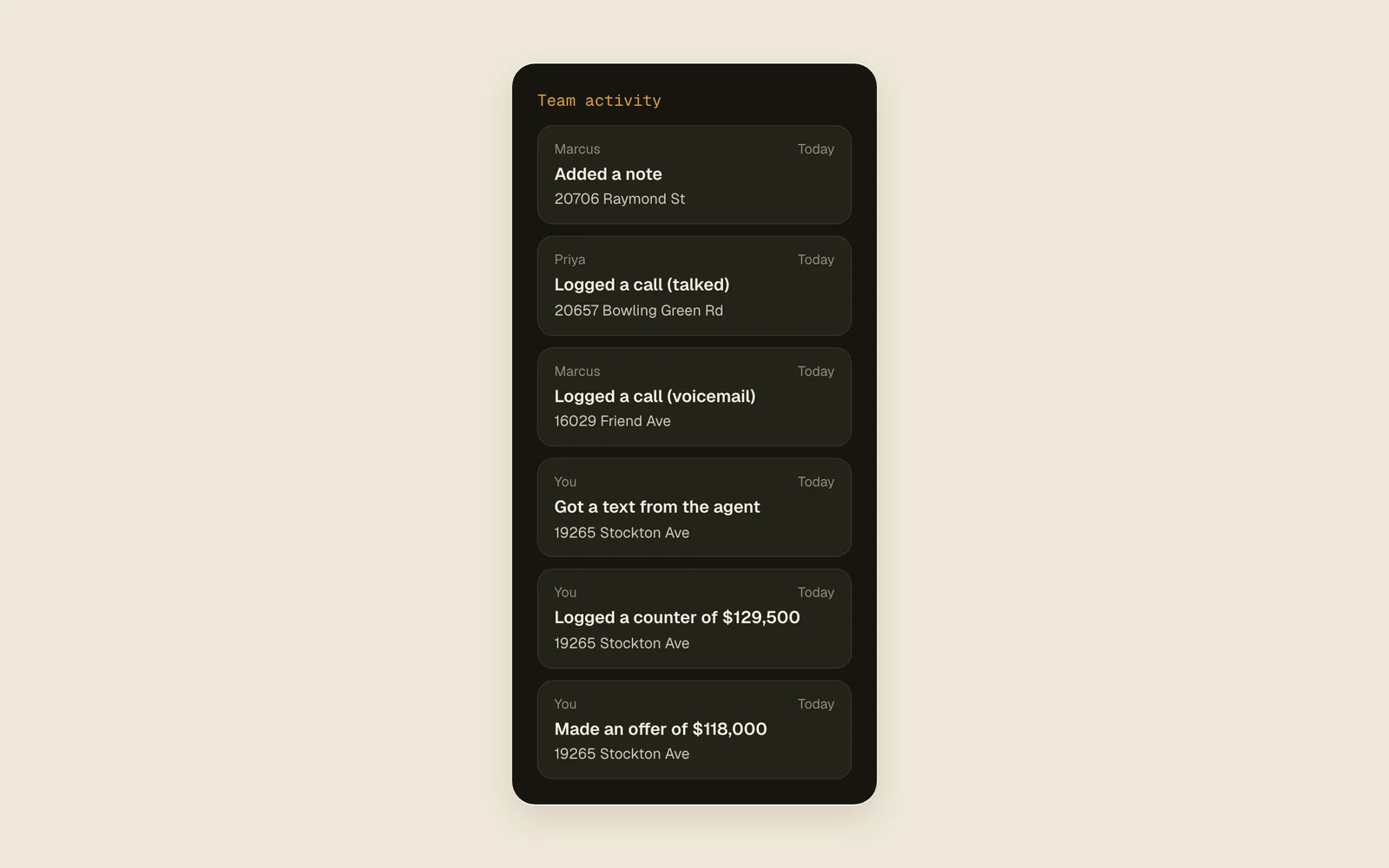
On Today, the Team activity card shows the latest things done in the workspace: who, what, when, and on which lead.
Mention a teammate
- 1
Open the lead
Go to the lead’s Activity tab. The note box at the top says “Add a note, @ to mention, or remind me…”.
Activity - 2
Mention someone
Type @ and the start of their name, then pick them from the list. The arrow keys and Enter work too.
- 3
Add the note
Finish the note and tap Add. The message at the bottom says who was notified.
Add - 4
Read your mentions
Tap Notifications in the sidebar (Alerts on a phone), then tap one to open its lead. Mark all read clears them all.
NotificationsAlertsMark all read - 5
See the team’s day
On Today, look at Team activity beside your tasks (below them on a phone). Tap an address to open the lead.
TodayTeam activity
Good to know
- Mentions work in the note box on the lead’s page. A note written in the Log activity box doesn’t notify anyone.
- You can mention people in this workspace, but not yourself.
- Delete the @Name from the note before you tap Add and that person isn’t notified.
- For the buzz on their phone, they need push turned on: see Push notifications.
- Notifications also gather follow-ups that are due and, under a line, what the team did on your leads.
- A note doesn’t finish a follow-up.