Your own lead fields
Track the details that matter to you on every lead, like “Pre-approved” or “Budget”. Workflows can check them, fill them in and start when one changes.
On this page
What it is
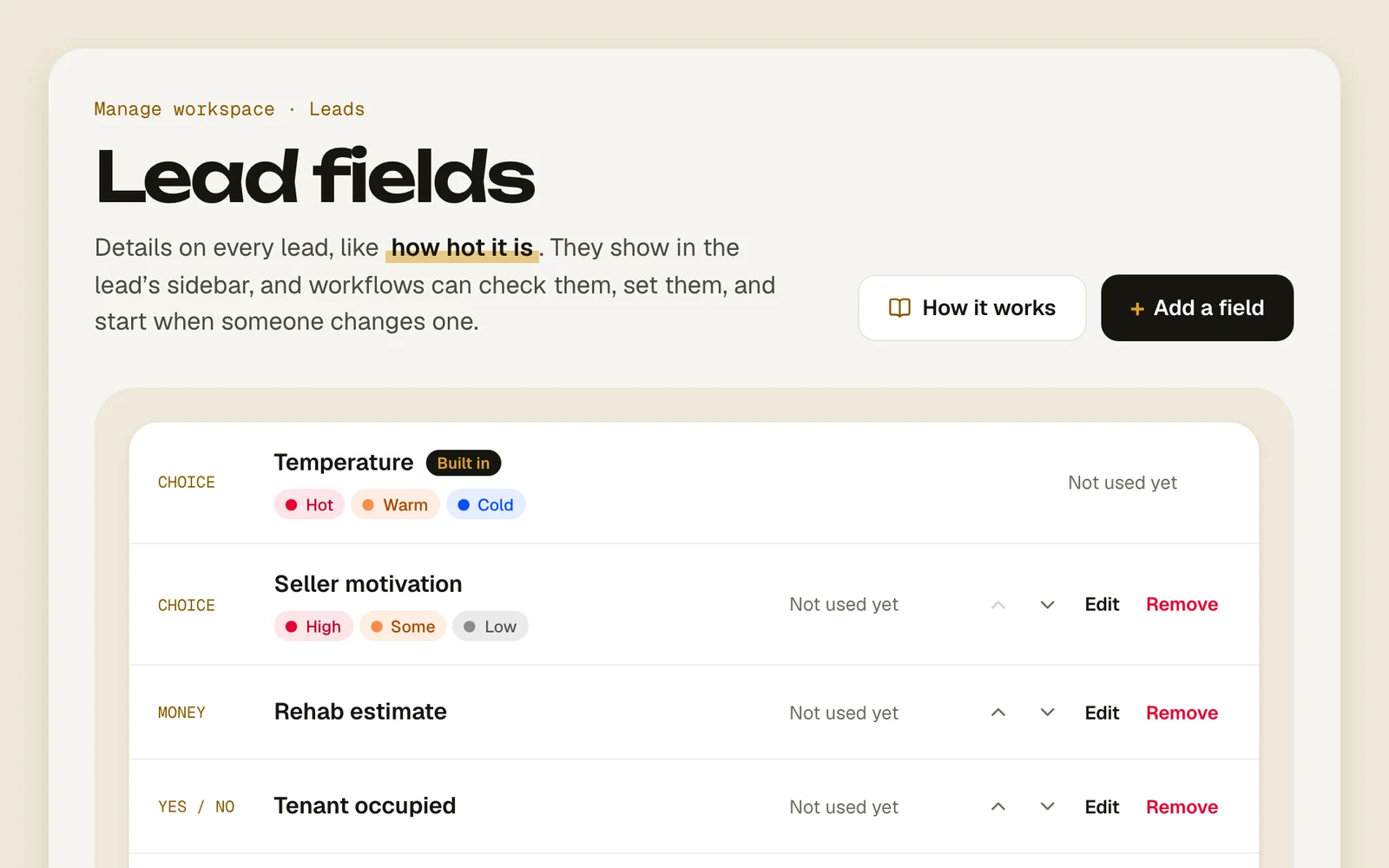
Every workspace has Temperature built in (Hot, Warm or Cold), shown as a chip next to the lead’s status. Owners add up to 30 more in Manage › Lead fields. Everyone fills them in on the lead’s page.
A field is one of six types: Choice (one of a few options, like Hot, Warm or Cold), Yes / No (a switch, like Pre-approved), Text (a short note, like Motivation), Number (a count, like Units), Money (an amount in dollars, like Budget) or Date (a day, like Lease ends).
Add a field and use it
- 1
Add a field
Go to Manage › Lead fields and tap Add a field.
Lead fieldsAdd a field - 2
Name it and pick a type
Give it a Name and pick a type. A choice needs at least two options; tap an option’s colored dot to change its color. Tap Add field.
ChoiceYes / NoTextNumberMoneyDateAdd field - 3
Fill it in on a lead
Open a lead. Your fields are on its details card, under Owner (on a phone, in the Deal tab). A change saves right away, with Undo in case.
OwnerUndo - 4
Use it in a workflow
In the workflow editor, check a field with A field’s value is, start a workflow with A field changes, or fill one in with a Set a field step. A message can put a field’s value in too: it’s one of the Insert buttons. See Build a workflow.
A field’s value isA field changesSet a field - 5
Reorder, rename or remove
Use the arrows to move a field up or down, Edit to rename it or change a choice’s options, and Remove to delete it.
EditRemove
Good to know
- Only the owner adds, changes or removes fields. Everyone can fill them in.
- A field’s type can’t be changed after it’s added, and Temperature’s options can’t be changed at all.
- Removing a field clears it on every lead and can’t be undone. Removing an option clears it on the leads that have it.
- A field or option that a workflow uses can’t be removed. Take it out of the workflow first.
- Changing a field shows in the lead’s history but isn’t contact: it doesn’t finish a follow-up.
- When a person changes a field, workflows waiting on A field changes hear it. A workflow’s own Set a field step doesn’t set that off.
- On an archived lead, fields can be read but not changed.